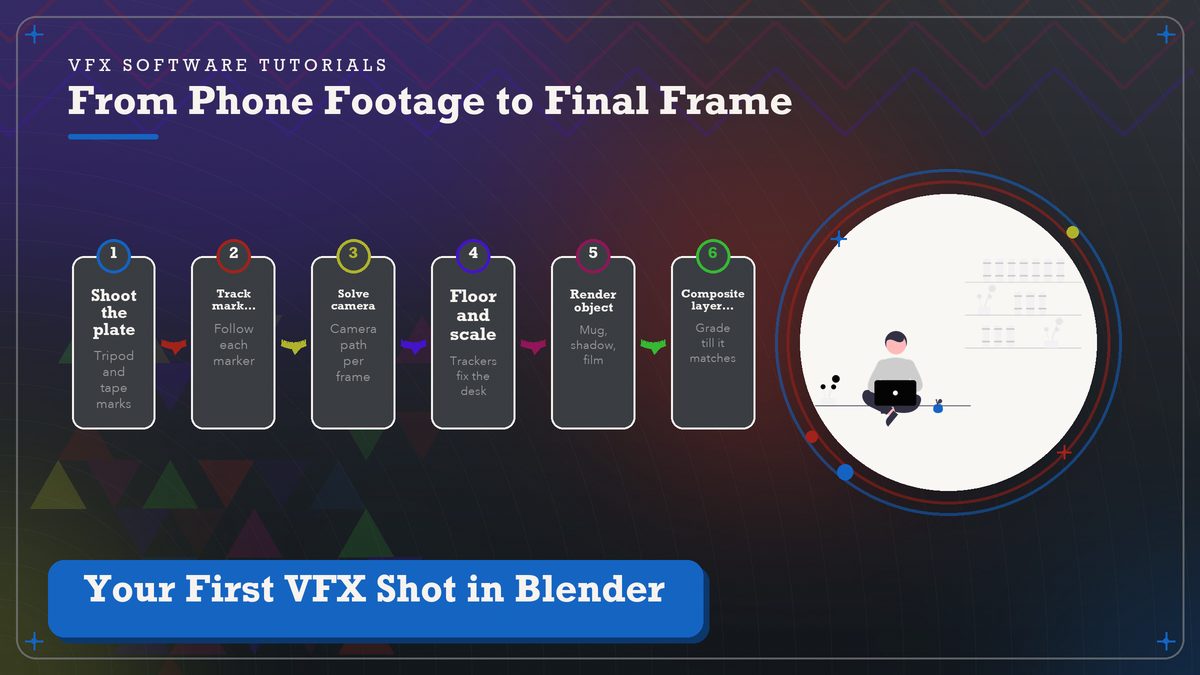
Your First VFX Shot in Blender: Compositing a CG Object Into Real Footage
You film an empty desk with your phone. An hour later, a coffee mug that doesn’t exist is sitting on it, casting a shadow, and nobody can tell where the real footage ends. This is the whole trick, and Blender does it for free.
Every VFX artist I know has one of these shots buried on an old hard drive. It looks rough, they keep it anyway. Nobody deletes it. A gray cube sits on a kitchen table, wobbling slightly, rendered in about forty minutes on a laptop that could barely run the software. Big movies run on the same pipeline we’ll build here, just with more people and bigger computers. Camera tracking comes first, then a scene locked to the footage, then a render carrying its own shadow, and finally a composite where the two stop looking like separate things.
Blender is the right tool for this for one boring reason, which is that it costs nothing and the whole pipeline lives inside a single program. You won’t need After Effects or a $400 plugin, and you won’t need a good computer either, though a dedicated GPU makes the render step noticeably less painful. Grab the latest release from the official Blender download page and you’re set for every step below in the current 4.x series.
The shot goes like this. You film your desk or kitchen counter for about ten seconds, then drop a computer-generated object into the frame. I’ll use a coffee mug because a curved, slightly glossy surface exposes every cheat in the book, and if your mug looks pasted on, no spaceship model is going to save you. Once this shot works, the identical steps drop into any model you like.
Shoot Your Plate Like You Mean It
Everything that goes wrong later starts here, at the kitchen table.
“Plate” is the industry word for the footage you’ll composite into, and its quality decides how much pain everything after this section holds, so it’s worth ten minutes of care at the kitchen table before you press record. Lock your phone on a tripod, a stack of books, whatever holds it still, and don’t touch it during the take. Wild pans and mid-take zooms make tracking miserable, while a slow push-in or a gentle arc is fine and looks impressive once the object sticks to the scene.
Now for the step beginners love to skip, which is laying down tracking markers. Take four or five sticky notes, drop them on the desk around where the object will live, and scribble a heavy X on each with a black marker. Trackers need texture and contrast to grab, and a bare white desk gives them nothing, so the tracks slide around like they’re on wet ice. It matters. Bright, even room light beats dramatic shadows for a first attempt, because one hard shadow is another thing your CG light has to imitate. Lock the exposure too, because auto-exposure pumping brighter and darker mid-take shifts the marker colors and quietly kills good tracks.
One more fussy thing pays off later. Write down the rough height of the camera above the desk and, if your camera app shows it, the focal length. You’ll use both numbers to sanity-check the solve in a few minutes.
Copy the file to your computer and don’t let any app “optimize” it along the way. Blender reads the phone’s H.264 straight off the card, and on a slower machine you can build a smaller proxy under the Clip Display panel so scrubbing stays smooth.
Track the Camera
Blender watches your markers and back-calculates where the real camera was, frame by frame.
Open Blender, switch to the Motion Tracking workspace from the top tab bar, and load your clip into the Clip Editor. Hold Ctrl and drag a box around one of your tape markers to plant a tracker, then hit play and watch the little crosshair follow it across the frames. When it drifts off target the track turns red, so you scrub back, nudge the marker onto the spot, and press T to re-track that stretch. It’s the fiddly part of the whole project, so put on a podcast and settle in for a while.
More is better here. Aim for somewhere in the region of fifteen to thirty trackers, spread across the frame but concentrated near the desk area where the object will sit. The Blender manual’s tracking section covers every marker setting, and the defaults carry you further than you’d expect. I think bigger tracking boxes shrug off motion blur, smaller ones cling to fine detail, and a marker that keeps failing is telling you something, which is usually to move it to better texture rather than fight the same spot. Ten minutes of marker babysitting probably saves an hour of solve troubleshooting later, or so I’ve found.
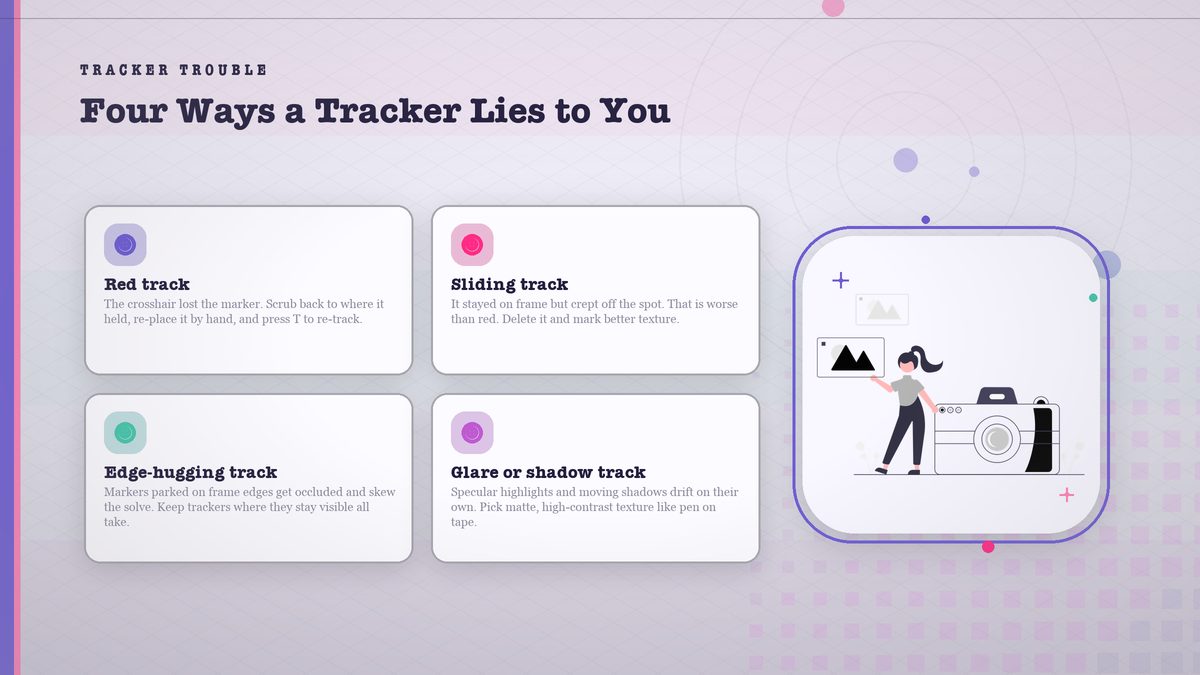
When the tracks look steady, select them all and press the Solve Camera Motion button in the left panel. Blender chews through the math and returns a solve error. You want that under about 1.0 pixel, and half a pixel is genuinely good. My early solves landed around 3 or 4, the object swam visibly, and fixing that meant deleting the worst tracks and adding fresh markers near where the mug would sit. I said you want under 1.0, and I mean it, though plenty of acceptable first shots live at 1.2 when the camera motion is gentle. Fair warning, though. A solve can score 0.4 and still fail if every tracker sits in one corner of the frame, because then Blender has nothing holding the rest of the scene in place. Phone lenses are wide and bend straight lines near the edges, so if the object slides at the frame edges, open the Lens panel and nudge the distortion value until the grid lines sit flat on the footage. Spread the markers across the whole desk rather than only under the mug.
Give the Scene a Floor and a Scale
At this point Blender owns a camera path and a cloud of points drifting in abstract space, and it’s time to make those numbers mean something. Select three or more trackers on the desk surface, open the Orientation panel, and the Setup Tracking Scene button does most of the work, dropping in a grid and a camera at a plausible height. Then pick two trackers whose real-world distance you know and type it into the Scale field. The whole scene snaps to true size, which matters because your mug is modeled at real scale and a scene that’s forty times too big throws subtly wrong lighting and a shadow landing nowhere near the object. Cross-check the solved camera height against the number you wrote down before shooting. If Blender claims the camera floated thirty feet above the desk, your scale or floor selection is off and the object inherits that wrongness even when the solve error looks fine. Basically, Blender now knows how big your desk is.
The tool also generates a point cloud of empties and parents your scene camera to the solved motion, so anything placed in the viewport is seen by a camera moving exactly the way your phone did. The illusion is geometry now.
Build the Object
Add a cylinder, shade it smooth, tug the top into a mug-ish profile, or skip the modeling entirely and pull a free mug from BlenderKit or Poly Haven. The composite is the lesson here; the mesh can wait. Give the material some roughness, around 0.2, because a perfectly glossy surface reflects your empty 3D world and reads as fake immediately, and save mirror-metal objects for later since they’re the hardest thing to sell.
Bevel the edges. Real mugs have rounded rims, and razor-sharp geometry catches light in a way that screams render, so run a small bevel on every edge before you light anything.
If you model the mug yourself, block out the silhouette first and leave surface detail alone until the composite already works. Detail on a shot that doesn’t track yet is wallpaper on a house with no roof. You can come back to the pretty surface once the shot holds.
Position the mug by snapping it to one of the floor empties Blender generated, or add a Copy Location constraint aimed at an empty near where you want it. Eyeballing it against the viewport works fine because the viewport camera is the solved camera, and the constraint simply keeps the mug from drifting off its mark later on.
Match the Light or the Shot Dies
Shadows first. Look at the plate and work out which way the real shadows fall, how hard their edges are, and which side of objects catches the brightest light, because those three observations drive everything you do with the lamp. Add a Sun lamp and rotate it until your CG object’s light disagrees with the desk’s shadows as little as you can manage. Position doesn’t matter for a sun lamp, and only rotation counts, which is why it’s the friendliest light in Blender for this job.
Your object doesn’t have to be lit perfectly. It has to be lit like the desk.
Then the ambient fill, because your kitchen has light bouncing off every wall while a default Blender world is pure black, and that leaves the shadow side of the mug looking like a cutout. Crank the World background strength up to something small but non-zero, or hang a big soft Area light on the fill side at low power. I just nudge world strength until the dark side stops looking like a hole, which isn’t remotely scientific and works fine for a first shot. If the room light is warm, your render will read cold and blue next to it, so shift the Sun lamp’s color toward orange until the mug’s whites match the desk’s whites.
Render With a Shadow
The shadow is what convinces the eye. Everything else is decoration.
The mug has to sit on the desk, and the desk exists only in the footage, so you can’t render the mug over black and call it done. Add a plane under the mug at roughly desk size and run the shadow-catcher workflow. In Cycles the plane is set to catch shadows only; in Eevee the beginner trick is a plain diffuse material plus Film > Transparent in the render settings, so only the mug and its shadow darken the plate in the composite. The compositor chapter of the manual is the reference for the next section, and it’s worth bookmarking since you’ll live in those nodes for the life of this project.
Almost ready to render. Set the engine, resolution, and frame range to match the plate, and double-check that the active camera is the solved one from the tracking scene. Mismatched frame ranges are a classic way to render 240 frames when the clip only has 200. Eevee chews through a ten-second clip in minutes while Cycles looks better on soft shadow edges but can run an hour or more on an older machine, In Eevee, bump the render samples to 64 and enable soft shadows so the mug’s contact shadow doesn’t turn into a hard sticker. Ship Eevee first and chase beauty on shot two.
Composite Until They Agree
Open the Compositing workspace, enable Use Nodes, and wire up the minimum viable composite, where your Render Layers node feeds an Alpha Over node sitting on top of the Movie Clip node that holds the plate. If the lighting match was honest this already looks passable, and the remaining work is making the CG layer and the phone footage stop looking like two things that met that morning. A short stack of nodes does most of that job. Name your nodes as you add them, because the graph gets unreadable fast once grain and glare join the party.
Phone footage is noisy. It’s a little compressed, and never quite the color your render claims it is. So give the CG layer a slight Gaussian Blur at about half a pixel to soften the razor edges, then drag the render’s contrast and saturation down toward what the footage is doing with a Color Balance node. A touch of film grain over the full frame at the end gives both layers the same texture, and a very gentle Glare node on the mug’s highlights helps because phone sensors bloom bright spots more eagerly than renderers do. Which is a fancy way of saying the render comes out too clean, and dirtying it up convincingly is most of the compositing job. Zoom a mid frame to 200% and check the mug’s silhouette against high-contrast edges in the footage, since fringe and halos show up there long before they show at full size.
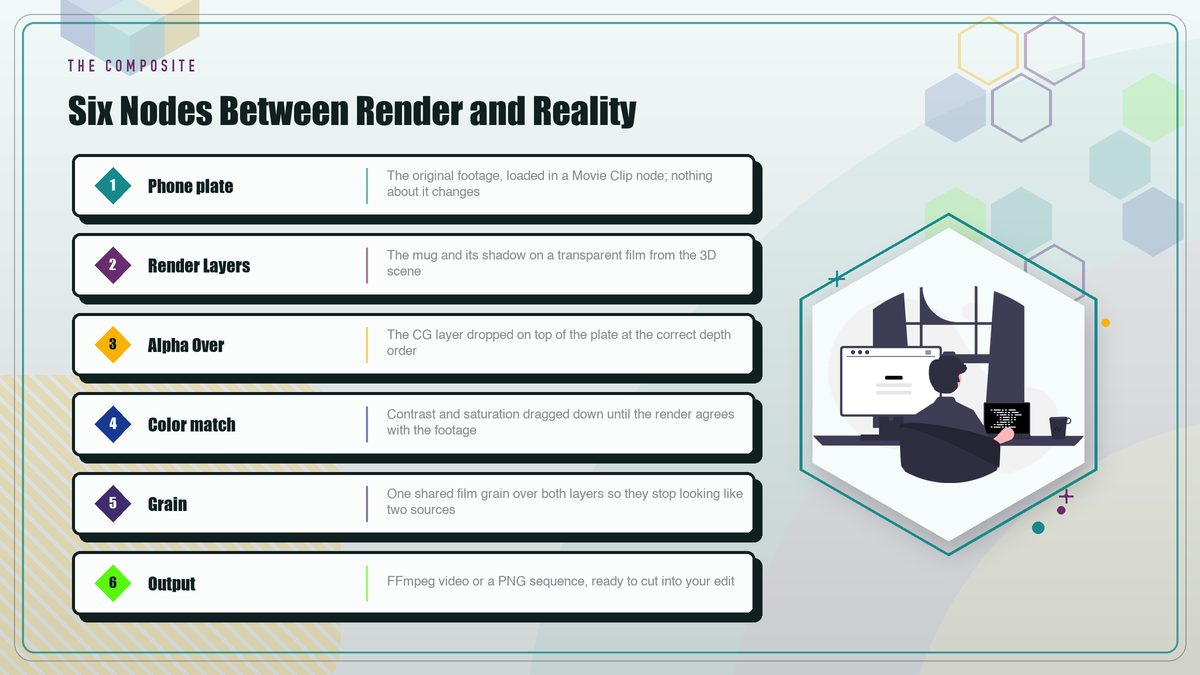
Set the output to FFmpeg video or a PNG sequence, hit Render Animation, and go make coffee while the real mug sits in the cupboard feeling superior.
The Mistakes Everyone Makes
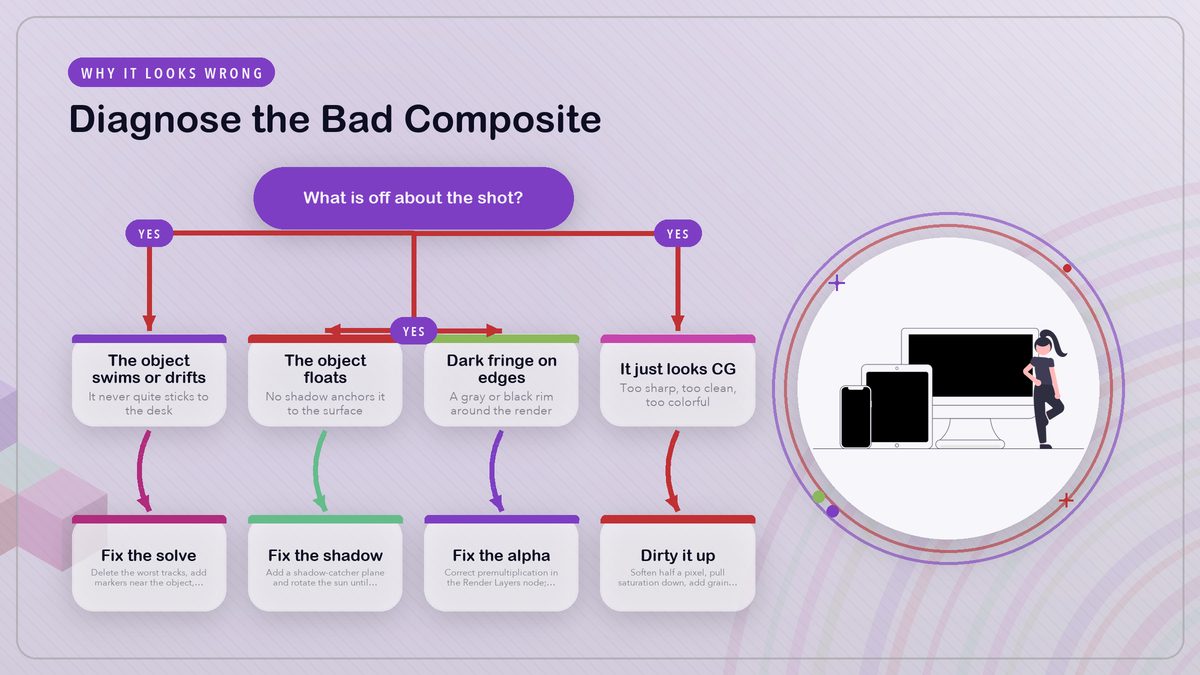
Almost every first composite dies to one of four things. They’re all cheap to fix once you know where to look, so it helps to know the usual suspects before the render button ever gets pressed.
| Symptom | Cause | Fix |
|---|---|---|
| The object swims or drifts | Bad solve, trackers bunched in one area, or a marker sliding you didn’t catch | Re-solve after deleting the worst tracks, then add markers near the object. Get the error under 1.0 px. |
| It floats above the surface | No shadow, or the shadow points a different direction than the scene’s | Shadow-catcher plane under the object; rotate the sun until shadows agree |
| Dark fringe around the edges | Premultiplication mismatch between render and composite | Set the alpha conversion correctly in the Render Layers node. A half-pixel blur hides the rest. |
| Looks “CG” next to the footage | Too sharp, too saturated, too clean | Blur half a pixel, pull saturation down, add grain over the full frame |
The swimming one deserves extra fear, because it’s the only failure no amount of compositing can hide. If the object doesn’t stick to the desk then nothing downstream matters, which is why I’d check the solve error before building a single material. Scrub to the first, middle, and last frames and watch the contact point where mug meets desk. If it breathes or crawls even a little, the solve isn’t done with you yet.
Where to Go From Here
Once the mug sits still and fools your friends, the same pipeline scales in every direction you care to push it. The movie clip editor chapter of the manual goes far past the basics, because the same toolset that tracked your kitchen desk has shipped in plenty of real productions. For still-photo composites, the free fSpy camera-matching tool replaces the whole tracking step with a handful of vanishing-point clicks and no markers at all. Same idea, different front door. Which is the whole appeal of learning the free tool before paying for anything.
And if the practical side of filmmaking pulls at you harder than the software does, that same eye for light and shadow is what makes physical tricks land on camera. Our breakdown of miniature sets that look full-size runs on identical matching logic, just executed in foamcore and paint instead of polygons.
Render the shot three times. The first version comes out with something wrong somewhere, the second gets close, and the third is the one you post. That progression from broken to passable to good is the entire skill compressed into a weekend.
All software steps verified against the current Blender 4.x manual at docs.blender.org, and links were checked in October 2026. Next up in this series is pulling clean mattes from green screen footage, plus making objects float with wire removal. The mug, by the way, is optional.