Green Screen Keying in After Effects: From Spill to Clean Edges
Your first green-screen shot looks fine until you drop a bright background behind it, and then the green halo shows up, the hair turns crunchy, and the shoulders glow like a night light. This walkthrough covers the full Keylight workflow that fixes all three, in order, without buying a single plugin. Nothing extra to install.
Everyone’s first chroma shot goes more or less the same way. A friend stands in front of a bedsheet hung badly, you matte her out in twenty minutes flat, and a beach photo drops in behind. On a laptop screen it looks acceptable. Then the shot plays on a TV and her outline turns into a soft green smear, the kind that makes viewers squint even when they can’t name what’s bothering them. The instinct is to blame the cheap camera, and that’s only a small part of it. The bigger problem is the workflow itself: pull one matte and call it done. That works on stock footage shot in a proper studio with clean plates provided, and it falls apart on footage shot in an actual living room.
Pulling a clean matte is a stack of small problems, and each one has its own tool. Four problems, four tools. Edge softness, color spill, matte transparency, motion blur. Attack them in the wrong order and you’ll chase your tail for hours; run them in sequence and the shot barely fights back. I think the order matters more than the software, because once you know it, every compositor you’ll ever touch expects the same four problems solved in roughly the same sequence, which is why experienced artists jump between apps without blinking.
Everything below uses tools already inside Adobe After Effects, mostly the Keylight plugin that ships with it. Keylight has been an industry staple since it won an Academy Award for its part in the Lord of the Rings films, which tells you how far a bundled tool can go. You don’t need the latest release, because everything here works in versions going back years. I’d argue the plugin is the least of it anyway, since most ruined mattes come from skipped steps rather than missing features.
Shoot Like You Mean to Key It
Most bad mattes are decided before you ever open After Effects.
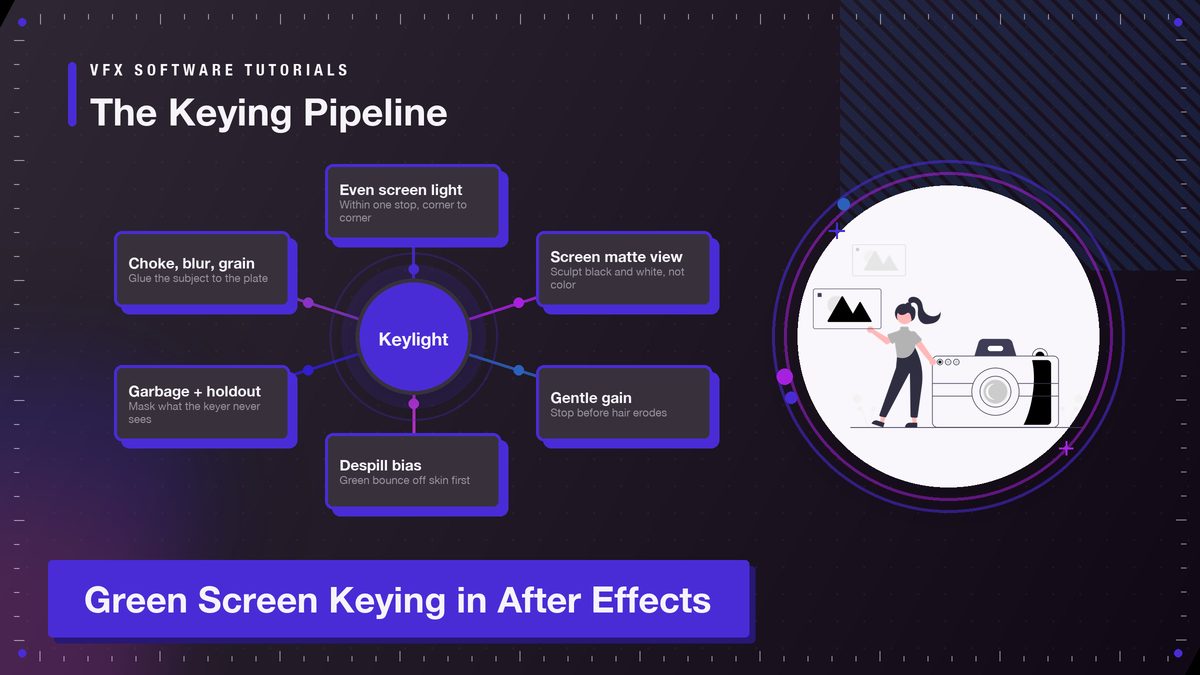
Keylight can rescue sloppy footage up to a point, but a shot lit for chroma work saves an hour of edge repair. The single biggest factor is even light on the screen. You want the green fabric or paper lit within one stop from corner to corner, Wrinkles and hot spots both lie. Shadows ruin the flat read, because a gradient screen leaves Keylight’s color picker guessing at what “green” even means out there at the edges. Two cheap LED panels, one on each side, aimed at the fabric instead of the subject, get you most of the way there for the price of a pizza.
Distance matters just as much, and keeping the subject six feet or more in front of the screen makes the green bounce that causes spill drop hard. I’ve watched people film two feet from a bedsheet and then lose an entire evening painting green out of hair strands, which is misery in a desk chair. And six feet of floor space beats six hours of rotoscoping, every single time, and it isn’t close.
- Light the screen, then light the subject. Treat them as two separate setups with separate lights.
- Watch the wardrobe. Anything green, aqua, or reflective will disappear or pick up the screen’s color. I check shirts before rolling, every time.
- Shutter speed up. Around 1/100 s or faster keeps moving edges crisper, which means less motion-blur fringing to fix later.
- Shoot a few seconds of the empty screen. That clean plate helps if you ever need to rebuild a corner of the background.
If you’re still shopping for material, proper chroma paper beats any fabric because it doesn’t wrinkle, and wrinkles are shadows, and shadows are the enemy of a flat screen. Every broadcast studio you’ve ever seen uses smooth cyclorama walls for exactly this reason. Smooth wins. Colored lights deserve a warning too, unless you’ve pulled a few mattes already, because mixed lighting turns the one color you planned to remove into three, and no plugin sorts that out cheaply or politely.
One question that comes up constantly: green or blue? Sensors settled it long ago. Digital sensors, the Bayer-filter kind in every mirrorless camera and phone, carry roughly twice as many green photosites as red or blue ones, which is why green screens need less light and produce less noise in the matte. Blue still wins when the subject wears green, or when blonde hair would pick up a green fringe, so the choice is really a wardrobe decision made at the hardware store rather than a software decision made in post.
Keylight, First Pass
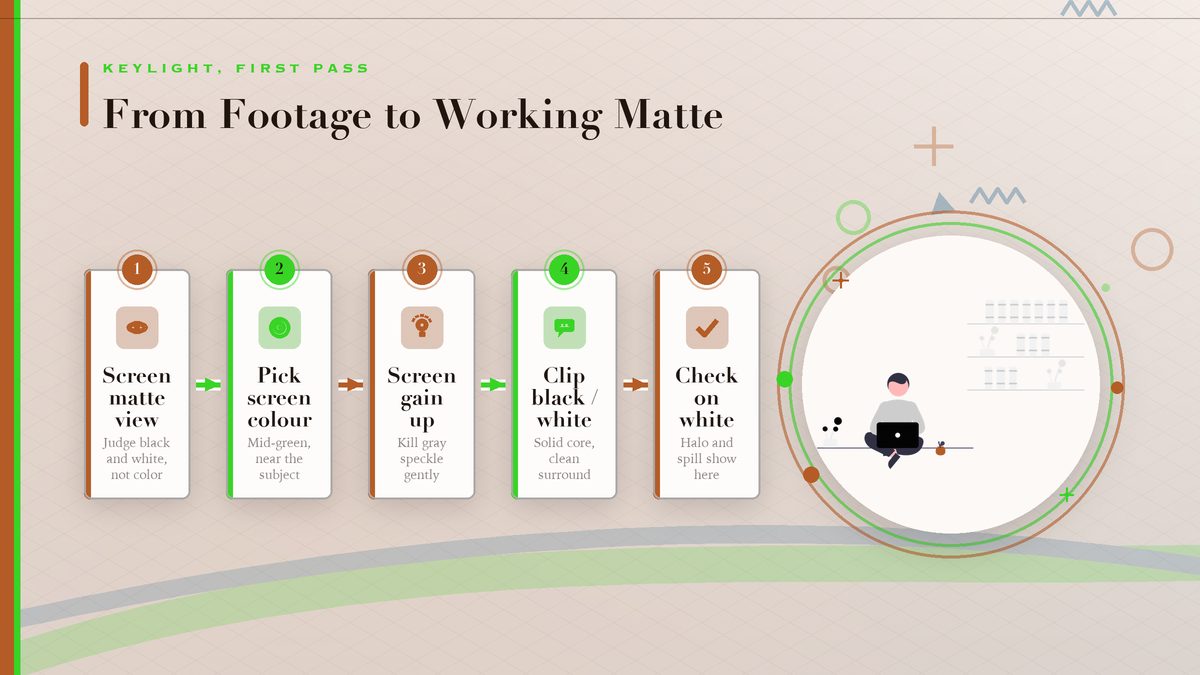
Import the footage, drop it in a comp, and drop Keylight on the layer. From here the workflow follows the official Adobe documentation for Keylight, and it starts with a step most people skip. Set the View menu to Screen Matte instead of Final Result. You’ll spend the next stretch staring at a black-and-white matte. The matte, rather than the picture, is the thing you’re actually sculpting for the rest of the session.
Grab the eyedropper next to Screen Colour and click a patch of screen near the subject, somewhere between the brightest and darkest green visible in the frame. White means opaque, black means transparent, and gray is the danger zone of semi-transparency. Gray is the fight. A solid white core around the subject with a clean black surround is the goal. If gray speckle shows up on a shirt or a face, nudge Screen Gain up gently, because too much gain eats soft edges like hair. So go one click at a time and check the matte view after each.
Two settings do most of the rescue work in this pass. Screen Balance tells Keylight how much of the other two color channels to respect, and the default serves most green screens fine. Skip the extras for now. Then, under Screen Matte rather than the main controls, Clip Black and Clip White squash leftover gray noise. Raise Clip Black until the background goes fully black without hollowing out the subject, and drop Clip White until the subject’s core turns solid and stays that way when the footage plays. Don’t chase perfection yet, because spill suppression will shift the edges and you’ll tune these numbers again.
Fix the Spill Before You Fix the Edges
Spill is the green bounce light that lands on the subject, and it’s why so many amateur composites glow radioactive on a bright background. Keylight removes most of it on its own. Enable Despill Bias first. Then pick a skin-tone pixel on the subject, and if the edges shimmer, set Screen Pre-blur to one or two, which trades a little sharpness for a lot less chatter. The dedicated Spill Suppression section exists too, though in practice the bias method handles maybe ninety percent of shots and keeps skin tones honest. Hair is the hard ten percent.
Fine strands catch spill between fibers, and aggressive suppression turns blonde hair gray, which looks worse than the green ever did. The pro move is moderate suppression on the full shot plus a soft mask around the hair with Refine Soft Matte applied above Keylight. That effect, which Adobe documents on the same page, grows a cleaner edge from whatever matte it gets handed, and it separates wispy hair from a soft screen better than anything else in the box.
One thing I’d skip on a first project is the Advanced Spill Suppressor. It’s powerful, but it shifts the whole image’s color model, and on footage with mixed lighting everything ends up slightly wrong in a way you notice only at the very end, probably during the export you thought was final. Start with the bias method. Graduate later, when a shot actually forces the issue.
Despill first, edges second. Do it the other way around and you’ll pull the same matte twice.
Edges, Garbage Mattes, and Holdout Masks
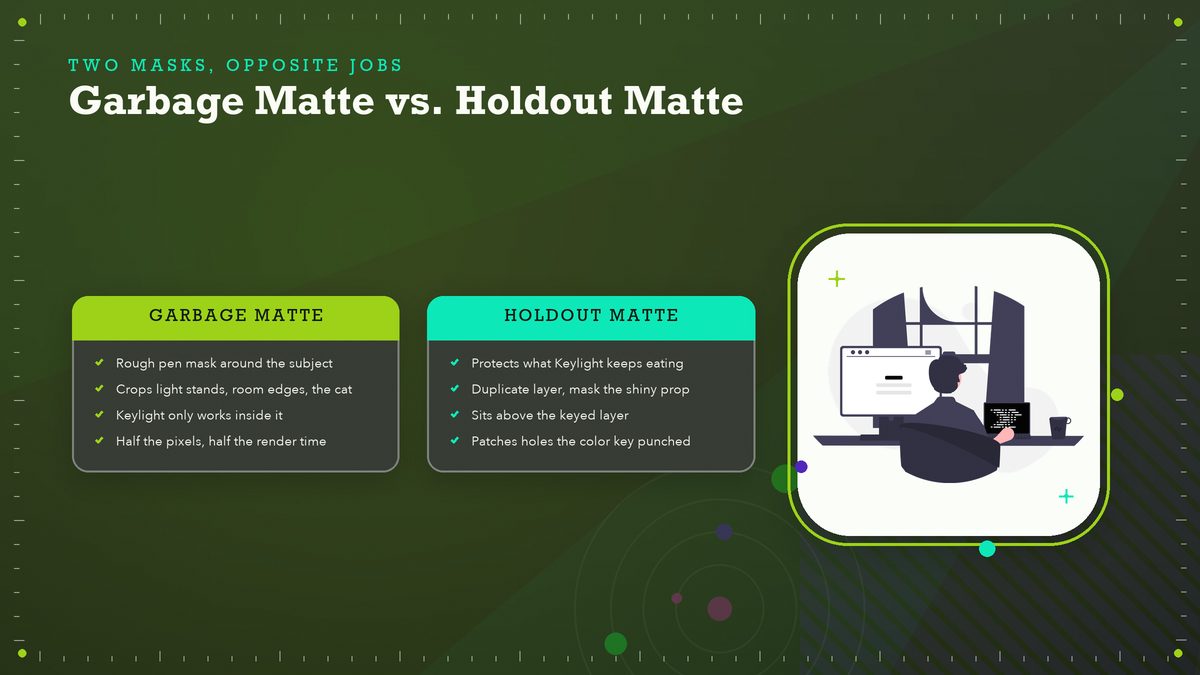
With spill under control, flip View back to Final Result and drop in the real background. This is the moment of truth, and three cheap tools finish the job from here. First, the garbage matte. A rough pen mask around the subject crops out everything already known to be background: light stands, the edge of the room, the cat. It doesn’t need precision, because Keylight only works on what’s inside it, and cutting the problem in half also halves the render time on top of everything else.
Second, the holdout matte, which is the same idea running in reverse. Something shiny reflects the screen and Keylight keeps eating it, so duplicate the footage layer, mask just the prop on the duplicate, and place that layer above the matted one. The untouched prop sits back on top and the hole is patched. Compositors call the pair garbage and holdout, and together they’re the difference between fighting the software and telling it where to look.
Third, edge cleanup with Simple Choker and Matte Choker, both documented under Adobe’s matte effects reference. Choke the matte by a pixel or two to kill the faint green rim, then blur the matte a quarter-pixel so the new edge stops looking cut out with scissors. The order matters more than the amounts. Choke first, then blur, or the rim blurs inward instead of disappearing. At one pixel this sounds like splitting hairs, and it is exactly that, and it’s also what separates “clearly composited” from “wait, was that shot for real?”
Edges also have to belong to the new background. A razor-sharp subject on a soft plate reads as fake even with a perfect matte, so match the blur first and add grain second. About half a pixel of Gaussian blur on the subject, then matched grain over the whole frame, glues the two layers together until they stop announcing themselves as separate sources. Grain hides more compositing sins than any plugin I’ve paid for, and I’ve paid for a few.
When to Ditch Keylight
Keylight loses a handful of fights, and knowing when to switch tools saves whole weekends. The table below maps the common failures to the right rescue.
| Situation | Better tool | Why |
|---|---|---|
| Blonde or frizzy hair against soft light | Refine Soft Matte (above Keylight) | Rebuilds the edge instead of fighting a binary matte |
| Green costume on a green screen | Reshoot on blue | No software recovers color you deliberately matched to the background |
| Fast motion with heavy blur | ROTO Brush 2 | Paints the matte per-frame; Keylight fringes on blurred edges |
| Glass, smoke, water spray | Luma matte or manual roto | Transparency is brightness-based, not color-based |
That middle row deserves a straight answer. Green-on-green is unrecoverable, full stop, so if wardrobe and screen collide, change one of them before rolling. Everything else on the list is a repair job with a known tool. Maxon’s learning material goes deeper on the color science if you want it, but for most shoots the practical answer is boring: light the screen evenly, keep the subject away from it, and let the software do the easy eighty percent.
Common Mistakes and How to Un-Make Them
- Over-gaining the screen. If Screen Gain above ~120 is your answer, the lighting is the problem. Go reshoot or relight rather than chew the edges.
- Masking the comp instead of the layer. Apply Keylight directly to the footage layer, because adjustment layers shuffle the sampling order and you’ll matte weird artifacts.
- Clipping to 0 and 255. Leave a little gray in the matte where motion blur lives, or moving limbs will strobe. Clip Black around 10–20 and Clip White around 235–245 is a sane starting band, at least until you’ve seen what extremes do to a fast-moving arm on a bright background.
- Sharpening before keying. Camera sharpening bakes bright halos into edges that Keylight reads as semi-transparent. Turn in-camera sharpening off if you can.
- Judging on a gray background. Always check the matte against white, black, and your actual background, because halos hide on middle gray and leap out everywhere else.
The judging point is the one I’d tape to the monitor, because gray lies, always. When I started parking the comp over a pure white solid for review, my reject rate on first-pass mattes dropped hard, though not to zero, because bedsheet physics remains undefeated no matter how good the plugin is.
Check Your Key in 60 Seconds
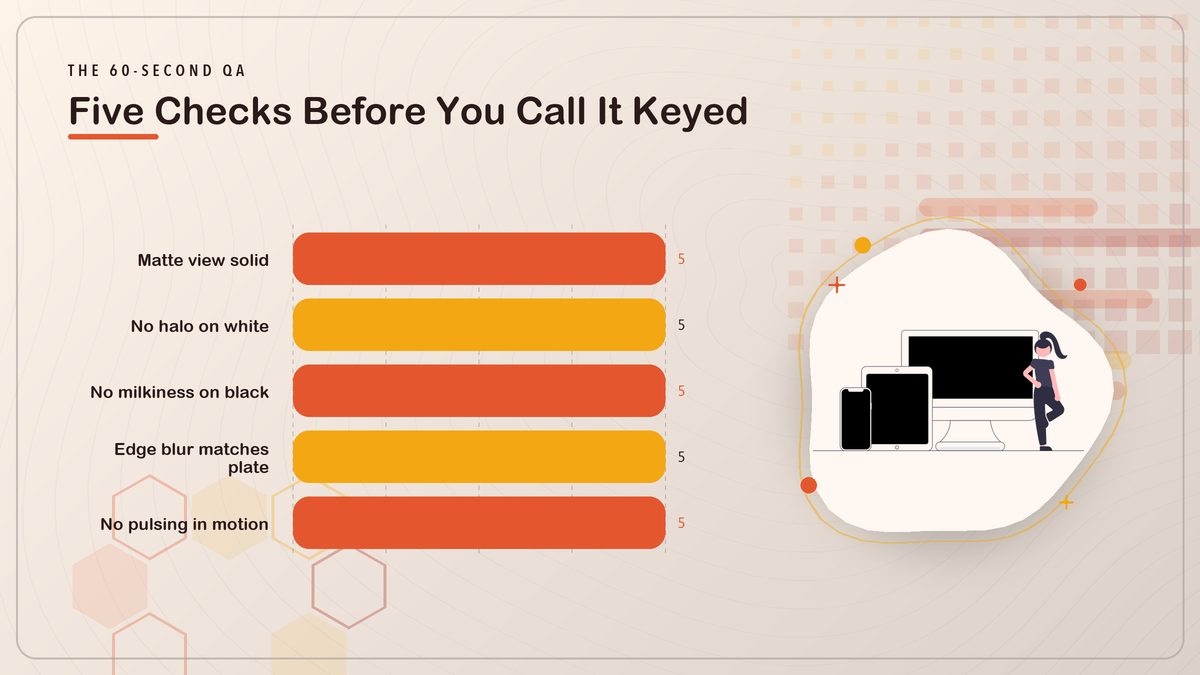
- Matte view. Solid white core, solid black surround, gray only where blur or transparency honestly lives.
- White background test. No green halo on shoulders, ears, or hair.
- Black background test. No milky transparency in the subject’s core; that means Clip White is too high.
- Real background test. Edge blur matches the plate, and grain is consistent across both layers.
- Motion test. Scrub through the fastest movement; limbs shouldn’t pulse or fringe.
That’s the whole craft in one workflow: even light, matte view, gentle gain, spill before edges, garbage and holdout mattes, choker and blur, grain last. The order does the heavy lifting. None of it needs a plugin, and every piece transfers to other software when you eventually outgrow this setup.
Where to Go Next
And if pulling mattes grabbed you, the natural next skill is motion tracking, so your backgrounds stick to handheld footage instead of sliding around like furniture on ice. The same comp skills also open the door to DaVinci Resolve’s Fusion page, a completely free node-based compositor where every concept in this article, mattes, despill, edge treatment, maps one to one. The vocabulary you just learned is the expensive part. The buttons are cheap, and free in Fusion’s case. One weekend of practice on your own footage teaches more than any preset pack, and your second matte will probably look twice as clean as your first.
Sources: Adobe — Keying effects (Keylight) · Adobe — Matte effects · Adobe After Effects · Blackmagic Design — DaVinci Resolve Fusion · Maxon